

Audio Pipeline
Section titled “Audio Pipeline”The Audio Pipeline view shows exactly what happens to your audio on its way from the source to your speakers, so you can confirm the quality is being preserved. It is a read-only view; there is nothing to configure here, and you can safely ignore it if you are not interested in the detail. Open it by selecting the quality label on the Player Bar or in the Now Playing view.
Basic View
Section titled “Basic View”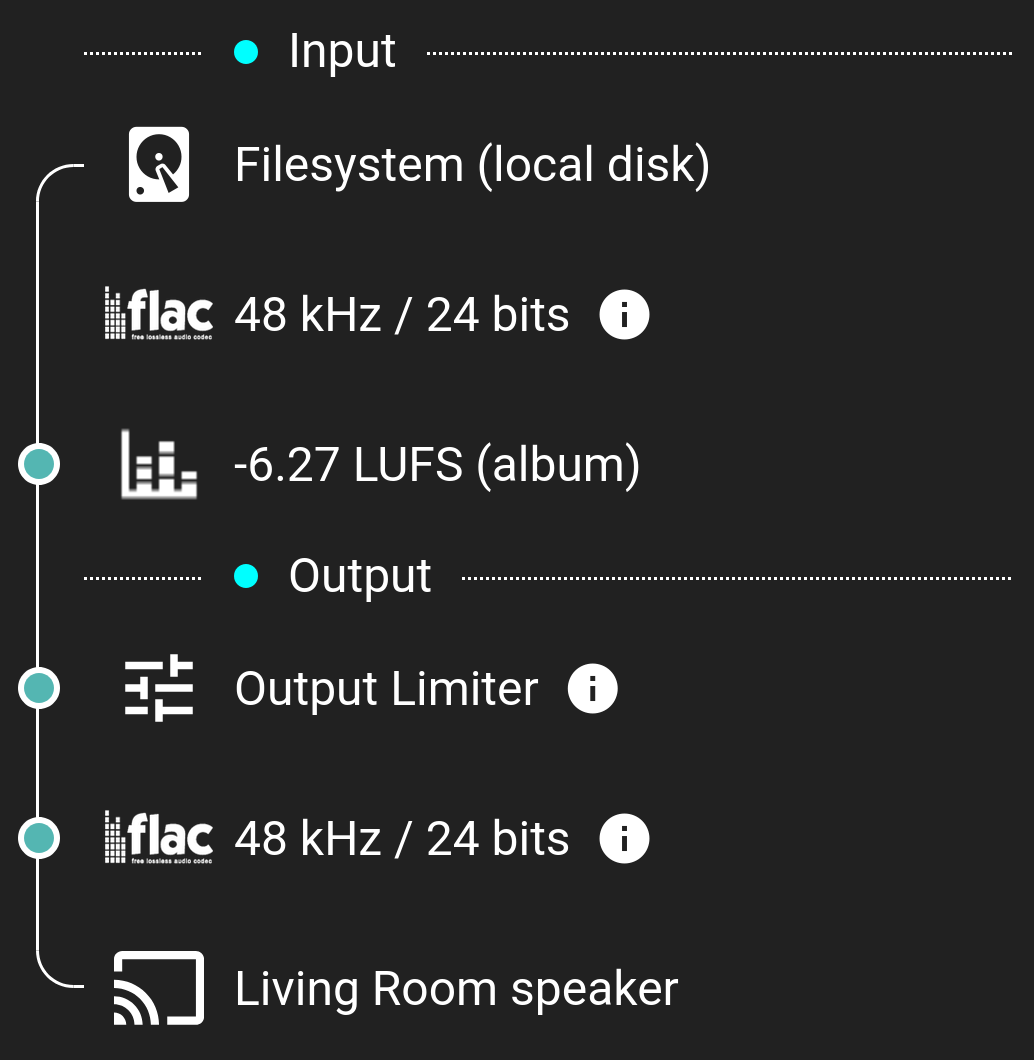
This view shows the complete path that the audio takes.
The view is broken into three sections, Input, Processing and Output. The colored dot on the section title indicates the quality as the audio leaves the section: orange (LQ, Low Quality) indicates a lossy codec below 256 kbps, light green (SQ, Standard Quality) a lossy codec at 256 kbps or higher, green (HQ, High Quality) a lossless codec, and cyan (HR, Hi-Res) a lossless codec where either the sample rate is above 48kHz or the bit depth is above 16.
The Input section shows the origin of the stream and the codec, sample rate, bit depth and bit rate. Even more details about the original file are available by hovering over the ⓘ.
The Processing section shows that all tracks are processed internally as raw PCM by Music Assistant and are decoded to 32 bits floating point in the sample rate of the source.
Next the Volume Normalization value is shown, along with where the loudness value came from: the track’s own measurement, the album value, a live measurement made while playing, or the source itself when it delivers audio at a loudness target of its own. How it is applied is described on the Technical Information page, and the settings that control it are under Settings → System → Streams → Queue Playback.
The Output section is then shown which, in this example, is simple and just shows the Output Limiter, the output codec and quality and then finally the icon of the output protocol and the name of the player is shown.
MA, by default, sends lossless audio to the player. The exact codec, sample rate or bit depth that are sent to the player depends on the player / output protocol and is always shown. Changes to the original audio quality may occur if the MP3 option has been selected in the player settings (See the Groups example below) or if the audio is resampled to match the player’s maximum or native sample rate or bit depth. PCM could be sent to the player, although typically FLAC is used to save some bandwidth.
The maximum sample rate that can be expected can be found in the Player Providers summary table. This can be further limited if changes were made to the default options for the player’s Sample Rates Supported by this Player advanced setting.
NOTE
Radio streams will have their bit depth reduced to 16 due to incompatibilities with some players
Digital Signal Processing
Section titled “Digital Signal Processing”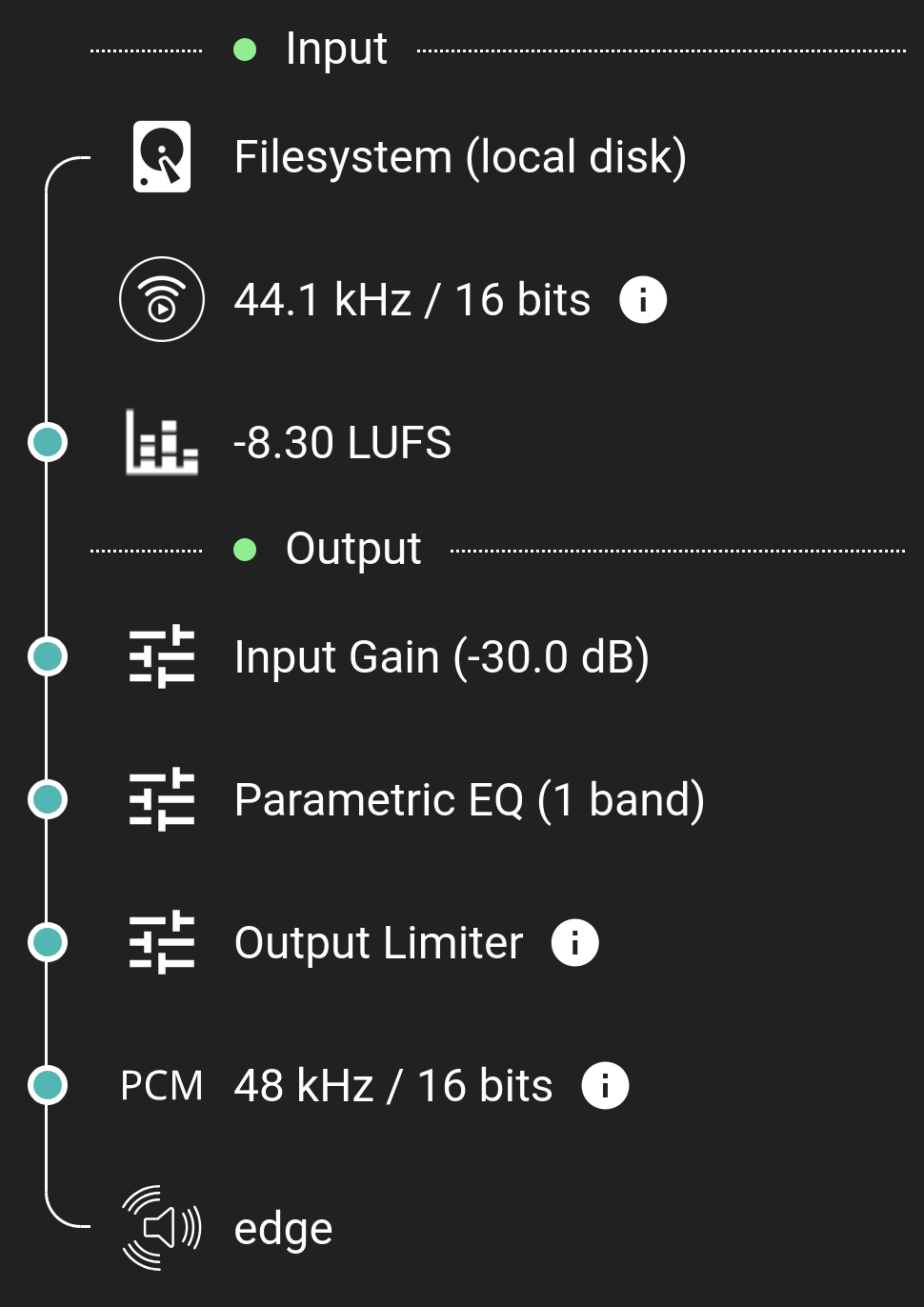
In this example DSP has been enabled. High level information about the DSP filters which have been applied are shown. A message will be shown if DSP is not supported (See the example below in Groups).
NOTE
Filters will not be shown in the audio pipeline if they have no effect on the audio path. For example, if the Balance control is set to the middle position then it is not doing anything and will not be shown.
Groups
Section titled “Groups”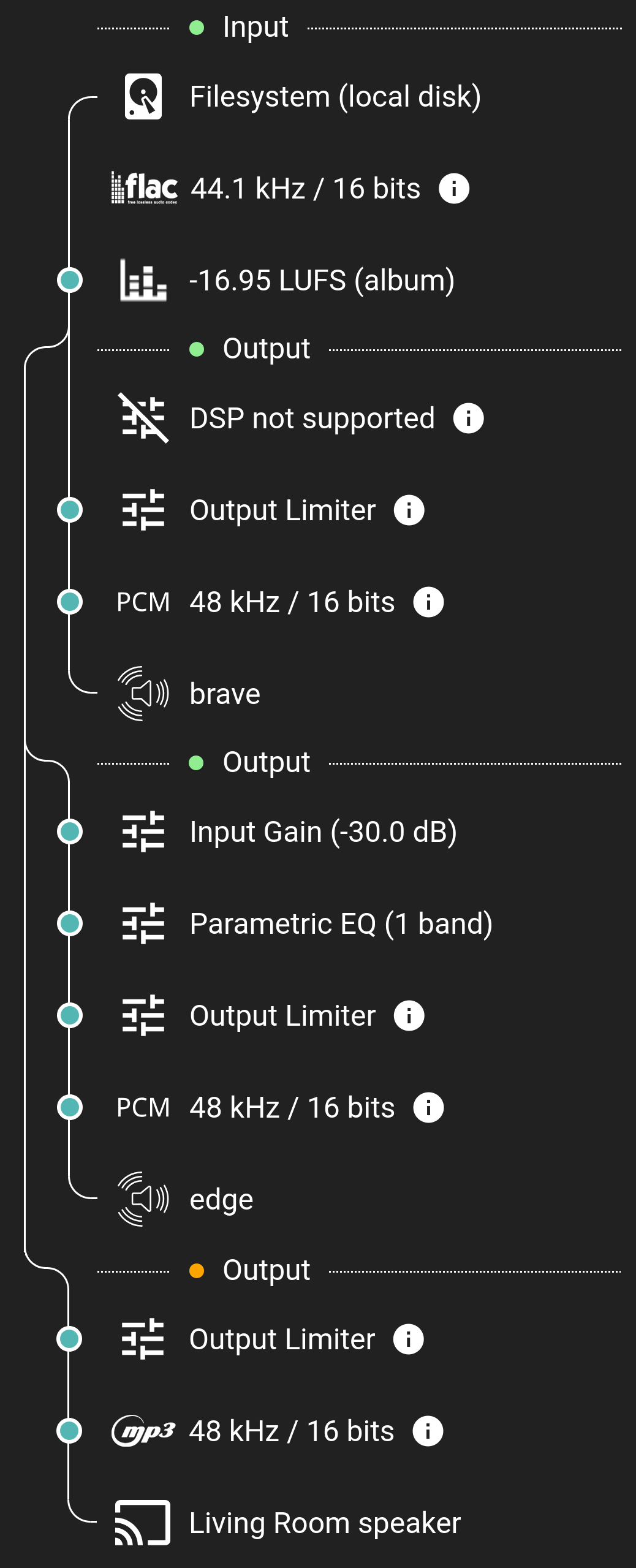
The view will expand as necessary to show all grouped players. In the example above two players are shown with a variety of filters and player types.
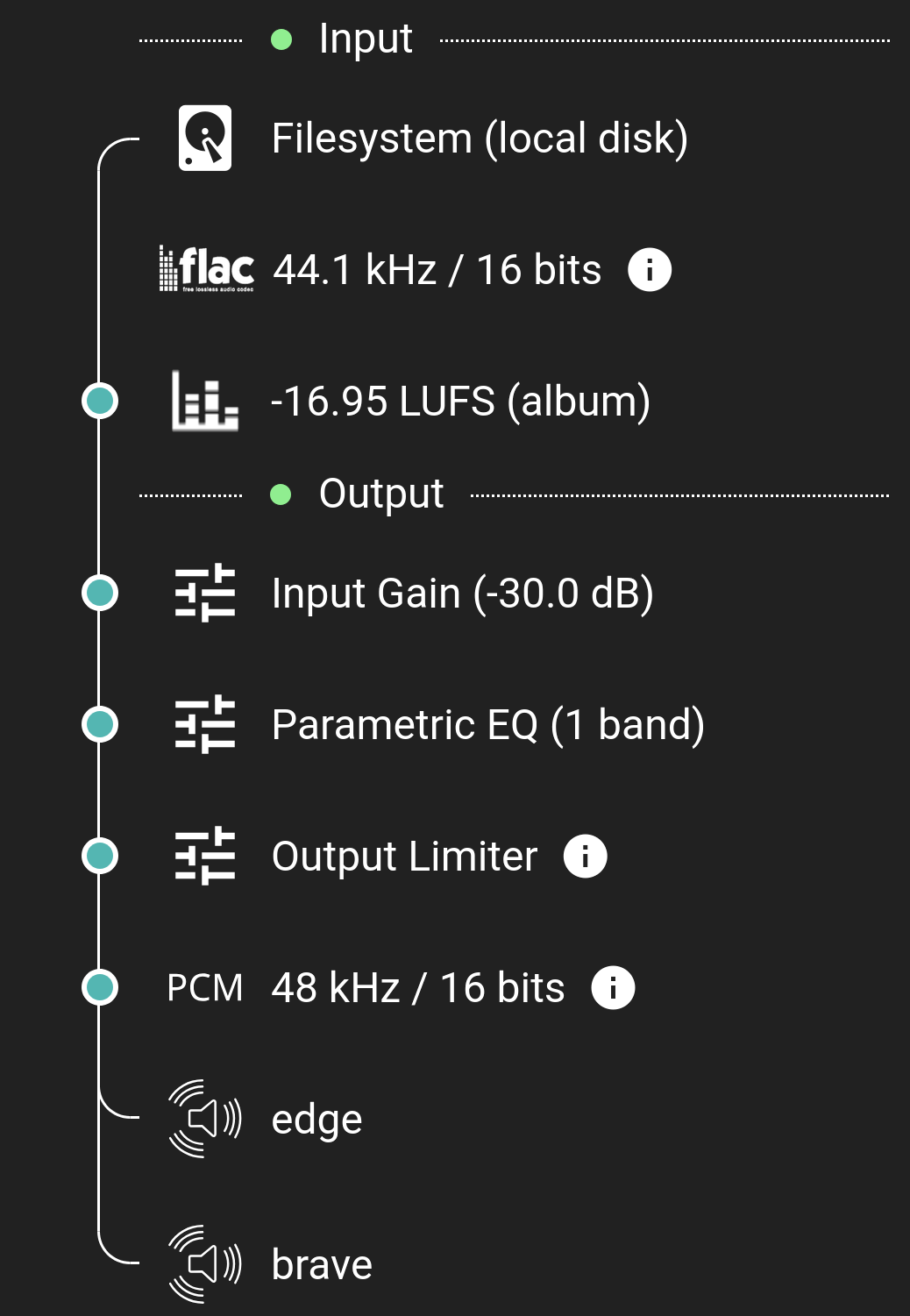
When a group of players have the same pipeline, then the identical output stages will be collapsed with one player shown followed by a plus sign and the number of other players represented. Note that in the case of Squeezelite or AirPlay a different output pipeline per player is possible, while with other player types such as Sonos or Snapcast, the leader determines the stream sent to all the children.
This website uses privacy-first analytics to help us improve the site. You can view all data in our public dashboard.