

Digital Signal Processing
Section titled “Digital Signal Processing”All players have the option to apply Digital Signal Processing (DSP) filters to the audio stream. DSP allows the audio to be shaped and refined with a variety of filters. It can be used to tailor the sound to a room’s acoustics, compensate for speaker characteristics, and fine-tune the frequency balance to personal taste.
The DSP option is found in the Music Assistant settings for each player which means that each player has its own independently configurable DSP settings.
When playing in a group, individual player DSP settings will only be used for Universal groups and when playing via AirPlay, Squeezelite or Sendspin. Groups using all other protocols will have DSP disabled.
The DSP Path
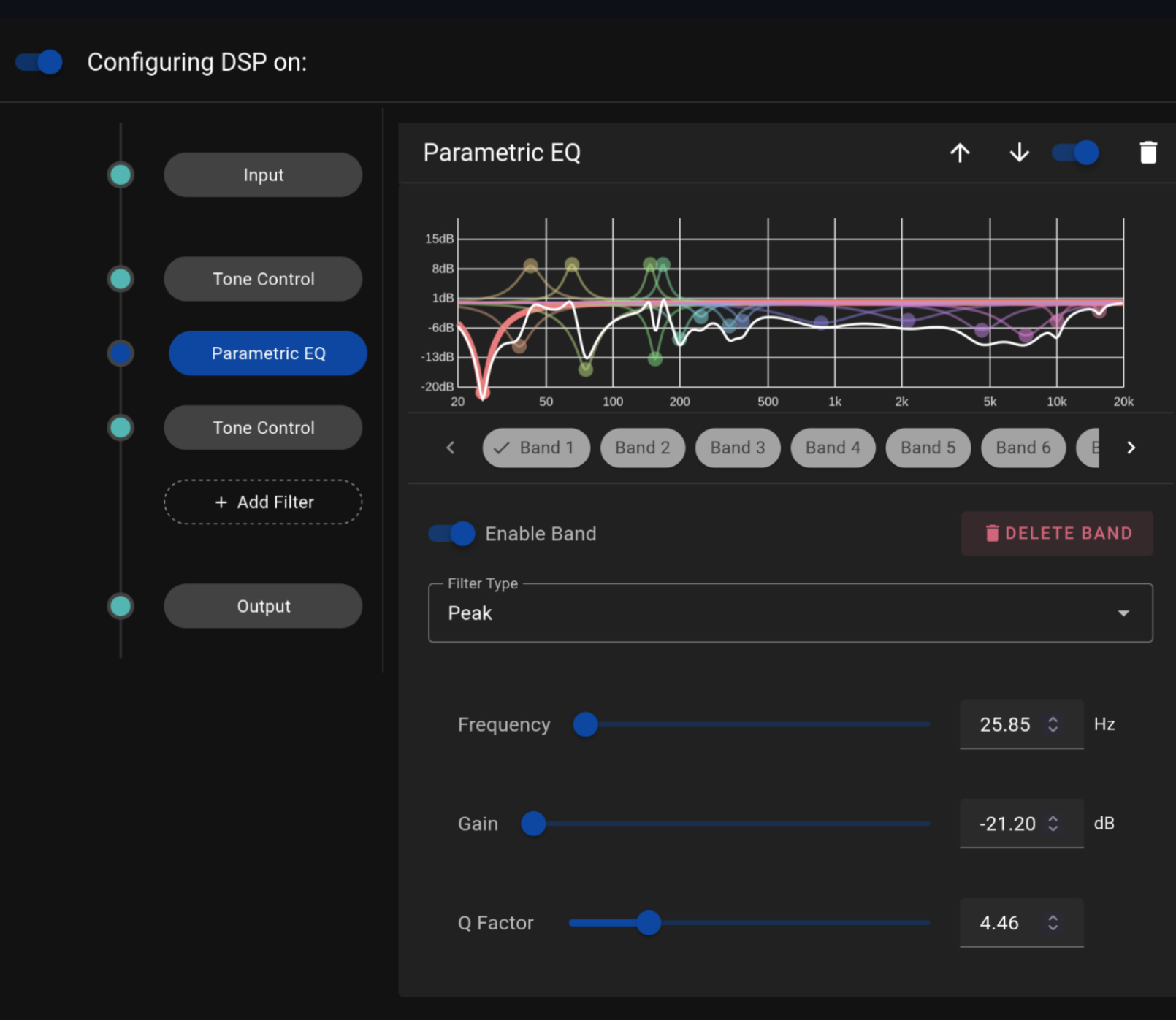
Section titled “The DSP Path”The DSP path consists of an INPUT pre-amplifier for initial gain control, followed by optional audio filters that can be added between input and output (multiple times if desired). The path ends with an OUTPUT stage that provides gain control. If there is a risk of clipping, for example after boosting with an equalizer or the Gain filter, a Safety Limiter filter can be added to the path.
The DSP settings can be enabled and disabled via a toggle which allows easy A-B testing
The line on the left of the DSP settings represents the audio path, in sequential order, from the audio file (top) to the player (bottom). A dot on the line represents a component that changes the signal. The lack of a dot indicates that the particular component has been disabled.
Using the icons at the top of the view, the filters can be reordered, disabled/enabled or deleted.
Some filters work on the relationship between the left and right channels and therefore only apply to stereo audio. Balance, Stereo Width and Crossfeed are all passed through unchanged when the source is mono, so they can be left in the path without affecting mono material.
Where to Start
Section titled “Where to Start”DSP is entirely optional and most people will never need to touch it. If a player sounds fine, leaving DSP switched off is a perfectly good choice, as it means the audio reaches the player exactly as it was in the source file.
For anyone approaching it for the first time, the Tone Controls and Balance filters are the place to begin. They are the two simplest filters, they behave in the way the equivalent controls on an amplifier do, and neither of them can do any harm. The Parametric Equalizer is far more capable, but it is also the easiest to get lost in, so it is worth becoming familiar with the simple controls first.
Three habits make the process much easier. Change one thing at a time, so that it is always clear what caused a difference. Use the enable toggle to compare the processed and unprocessed sound, as the ear adjusts surprisingly quickly and a change that seemed like an improvement often turns out not to be. Finally, prefer cutting to boosting: reducing the frequencies that are too prominent generally sounds more natural than raising the ones that are not, and it avoids any risk of clipping.
It is also worth remembering that DSP is configured per player, so corrections made for the kitchen speaker have no effect on the living room system, and each player can be treated entirely on its own terms.
Choosing a Filter
Section titled “Choosing a Filter”- The music is too bassy, too dull or too bright: Start with Tone Controls. If a specific narrow problem remains, such as one boomy note in a room, move on to the Parametric Equalizer.
- The sound is pulled towards one side, or the listening position is off-centre: Use Balance.
- One player is noticeably quieter or louder than the others: Use Gain to bring it into line.
- Listening on headphones: Crossfeed will make a speaker mix sound more natural, and hard-panned older recordings can be brought in further with Stereo Width. If a correction preset exists for the headphones, for example from AutoEQ, it can be imported directly into the Parametric Equalizer.
- Small speakers distorting or straining on bass: Add a High Pass filter at around 80 Hz to remove the deep bass they cannot reproduce anyway.
- Quiet passages disappear in a noisy room, or for background listening: The Compressor will even out the difference between loud and quiet.
- A boost has introduced clipping or harshness on peaks: Add a Safety Limiter after the filter responsible.
Available Filters
Section titled “Available Filters”The following filters can be added to the DSP path. The simpler filters are explained below, while the more advanced filters are described on their own dedicated pages.
Balance
Section titled “Balance”Shifts the stereo image left or right, from −100 (full left) through 0 (centred) to +100 (full right). Rather than the near side being boosted, the opposite side is quietened so the audio never becomes louder than the source and cannot distort. The value is the percentage by which the opposite channel is reduced: at +20 the left channel is played at 80% level, and at +100 the left channel is fully muted. Because the amount is expressed as a percentage of level rather than in decibels, it is best suited to balancing by ear; for a specific decibel trim, it should be noted that roughly every 20 points corresponds to about −2 dB on the opposite channel.
Compressor
Section titled “Compressor”Reduces the difference between the loudest and the quietest parts of the audio to produce a more consistent, controlled sound. It is described in detail on the Compressor page.
Convolution
Section titled “Convolution”Applies a recorded impulse response to the audio, most commonly for room correction, speaker correction or headphone simulation. It is described in detail on the Convolution page.
Crossfeed
Section titled “Crossfeed”Makes headphone listening feel more natural by gently blending the left and right channels, in a similar way to listening on speakers. With speakers, each ear hears both speakers, the sound from the further one arriving slightly later and duller. Headphones remove that blending entirely and send each channel to one ear only, which is why recordings mixed for speakers, particularly older ones with instruments panned hard left or right, can sound unnaturally wide or fatiguing over long listening sessions. Crossfeed reintroduces a small, filtered amount of each channel into the other to recreate what happens naturally in a room.
The amount of blending is set with the Low, Medium and High buttons. Low leaves the stereo image close to the original and simply takes the edge off hard-panned recordings, while High pulls the image furthest in towards the centre for the most speaker-like presentation. Low is a good starting point, with the higher settings suiting older or more extremely panned recordings. There is also a Soundstage control, which sets how much of the frequency range the blending is applied to: lower values confine it to the lower frequencies for a subtler effect, while higher values extend it further up and give a wider, more open impression.
Crossfeed has no neutral setting, so it is switched off by disabling the filter rather than by turning a control down. Because Music Assistant cannot detect whether a player’s output is going to headphones or speakers, this filter should only be enabled on players that are actually used with headphones. On speakers, crossfeed already happens acoustically in the room, so applying it again only narrows the image with no benefit.
Raises or lowers the overall volume by a fixed amount, from −15 dB to +15 dB (0 dB leaves the volume unchanged). It is useful for levelling a player against others, or for reclaiming headroom before other processing is applied.
High and Low Pass
Section titled “High and Low Pass”Removes everything above or below a chosen frequency, rather than turning it up or down. A high-pass filter passes the high frequencies and removes the low ones, and a low-pass filter does the opposite. Which of the two applies is chosen with the Mode buttons, so a single filter covers both; adding two of these filters, one of each mode, will restrict the audio to a band in between.
The Cutoff sets the frequency at which the filter starts to take effect. The transition is gradual rather than a wall, so the cutoff is the point at which the signal has been reduced by 3 dB, with frequencies further beyond it reduced progressively more. This means a high-pass set to 80 Hz still lets a little content through below 80 Hz, and the deeper the frequency the more it is removed.
The Slope sets how sharply the audio is removed beyond the cutoff, in decibels per octave, where an octave is a halving or doubling of frequency. At 12 dB per octave, a high-pass set to 80 Hz reduces 40 Hz by around 12 dB; at 48 dB per octave, the same 40 Hz is reduced by around 48 dB and is effectively gone. Gentler slopes blend more naturally into the rest of the music, while steeper slopes remove unwanted content more completely at the cost of a more abrupt transition. Only 12, 24 and 48 dB per octave are offered, as the filter is built from stages that each contribute 12 dB per octave.
The most common use is a high-pass to relieve small speakers of deep bass they cannot reproduce anyway, which removes rumble and cone movement that only adds distortion, typically somewhere between 60 Hz and 100 Hz. A low-pass is useful for taming harshness or hiss at the top end, or for feeding a speaker that is only meant to handle the lower part of the range. For gentler shaping of a frequency region rather than removing it outright, the Parametric Equalizer is the better tool.
Parametric Equalizer
Section titled “Parametric Equalizer”Allows precise adjustment of specific frequency ranges and is the most powerful of the available filters. It is described in detail on the Parametric Equalizer page.
Safety Limiter
Section titled “Safety Limiter”Sets a hard ceiling that the audio is not allowed to exceed, from −24 dB up to 0 dB, with a default of −2 dB. Anything that would peak above the ceiling is turned down just enough to stay beneath it, leaving everything below the ceiling untouched. Its purpose is to catch clipping rather than to shape the sound, so no make-up gain is applied and the overall level is not raised to compensate.
It is most useful placed after a filter that can add level, such as a Parametric Equalizer with boosted bands, the Gain filter, or Stereo Width set above 1.0. Because filters are applied in order, the limiter must sit after the filter it is protecting against in order to have any effect. A ceiling a little below 0 dB, such as the −2 dB default, is generally a safer choice than 0 dB itself, as it leaves a small amount of headroom for the player’s own processing. Unlike Gain or Balance, the filter has no neutral setting, so it is switched off by disabling it rather than by returning the ceiling to a particular value.
Stereo Width
Section titled “Stereo Width”Adjusts how wide the stereo image sounds, from 0 (mono) through 1.0 (unchanged) to 2.0 (wide). It works on the difference between the two channels rather than on the channels themselves, so anything sitting in the centre of the mix, typically lead vocals, bass and kick drum, is left untouched while panned instruments and ambience are moved further out or pulled further in. Values below 1.0 narrow the image towards mono, and values above 1.0 widen it. The useful musical range is fairly narrow: modest adjustments are effective, whereas pushing towards the top of the range tends to hollow out the centre and sound unnatural.
Narrowing is always safe, but widening adds energy to the signal and can therefore push peaks into clipping. If the width is raised much above 1.0, a Safety Limiter should be added after the Stereo Width filter in the chain, as order matters here. It should be noted that limiting will pull a widened image back in on loud transients, since it is protecting against clipping rather than performing a mastering task.
A width of 0 produces dual mono, meaning the stream still carries two channels but both contain the same summed signal. This is not the same as the player’s Output channels option, which actually reduces the number of channels sent to the player; the two are complementary rather than alternatives.
Tone Controls
Section titled “Tone Controls”Provides simple bass, mid and treble adjustments of the audio signal. They are described in detail on the Tone Controls page.
Transpose
Section titled “Transpose”Provides a means of shifting the pitch of the music up or down without changing how fast it plays. This can be particularly useful for those that prefer the slightly mellower character of music when the key of A is at 432Hz instead of the typical 440Hz. This filter is described in detail on the Transpose page.
This website uses privacy-first analytics to help us improve the site. You can view all data in our public dashboard.