

Genres
Section titled “Genres”Music Assistant includes a genre system that automatically categorises your library. Genres are split into three categories: Music, Podcasts, and Audiobooks. Genres from each stay separate, even when two categories share a name (like “Comedy” or “History”). Genres are used to organise and discover content across all your providers, making it easy to browse by style, find similar content, and keep your library well-structured.
The Genre Library
Section titled “The Genre Library”The genre library is accessible from the main navigation and displays your genres as three collapsible sections: Music, Podcasts, and Audiobooks. By default, only genres that have media items linked to them are shown.
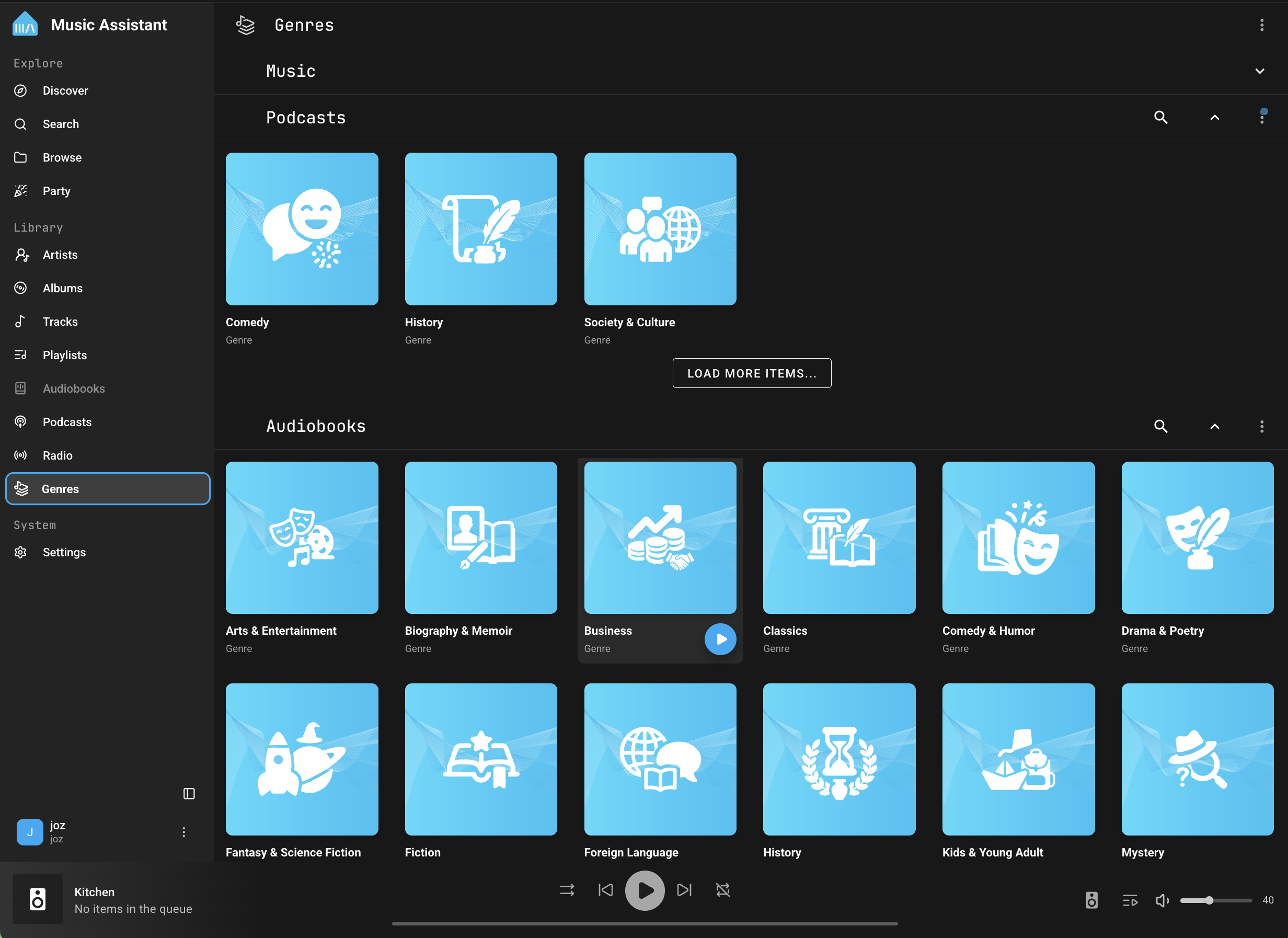
Each section loads a batch of genres at a time. Select Load more items at the bottom of a section to load more.
Sorting
Section titled “Sorting”Each section has its own toolbar, so Music, Podcasts, and Audiobooks can be sorted, filtered, and searched independently. Genres can be sorted using the sort option in the toolbar:
- Name (ascending/descending)
- Sort Name (ascending/descending)
- Date Added (ascending/descending)
- Play Count (ascending/descending)
Filtering
Section titled “Filtering”The toolbar provides several filter options:
- Favorites Only: Show only genres marked as favorites
- Hide Empty Genres: Cycles through three views each time you select it:
- Hide empty genres: Default. Hides genres with no linked media items
- Show only default genres: Hides any custom genres you’ve added, showing only the built-in ones
- Show all genres: Shows every genre, including empty and custom ones

Search
Section titled “Search”Use the search button in the toolbar to find genres by name. Genre names are matched against both the original name and any translated display names.
Adding a Genre
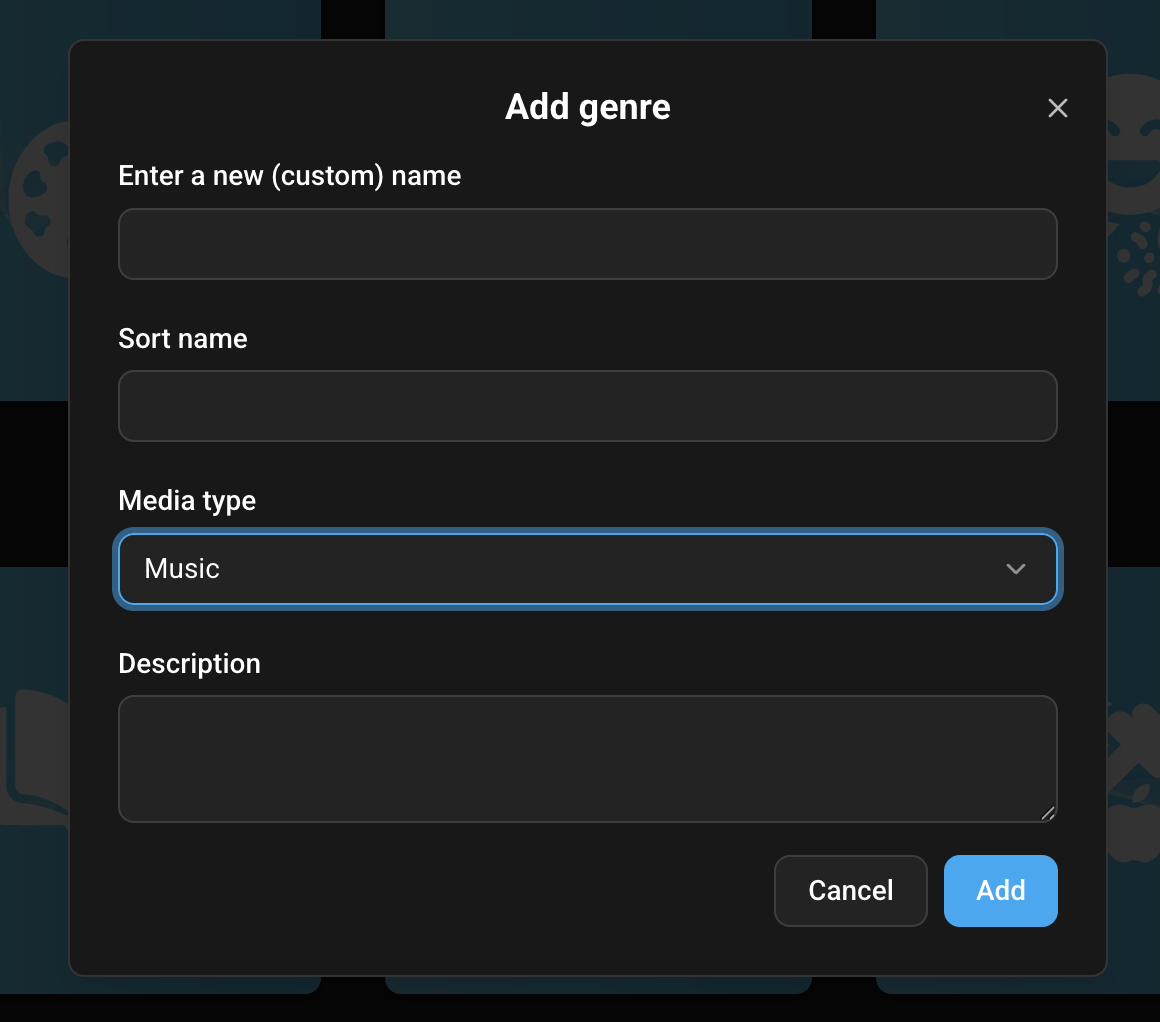
Section titled “Adding a Genre”Administrators can add new genres manually using the Add Genre option in the toolbar menu. This opens a dialog where you can provide:
- Genre name (required)
- Sort name (optional, used for custom sort ordering)
- Media type: which category the genre belongs to (Music, Podcasts, or Audiobooks). Defaults to Music
- Description (optional)
Genre Detail Page
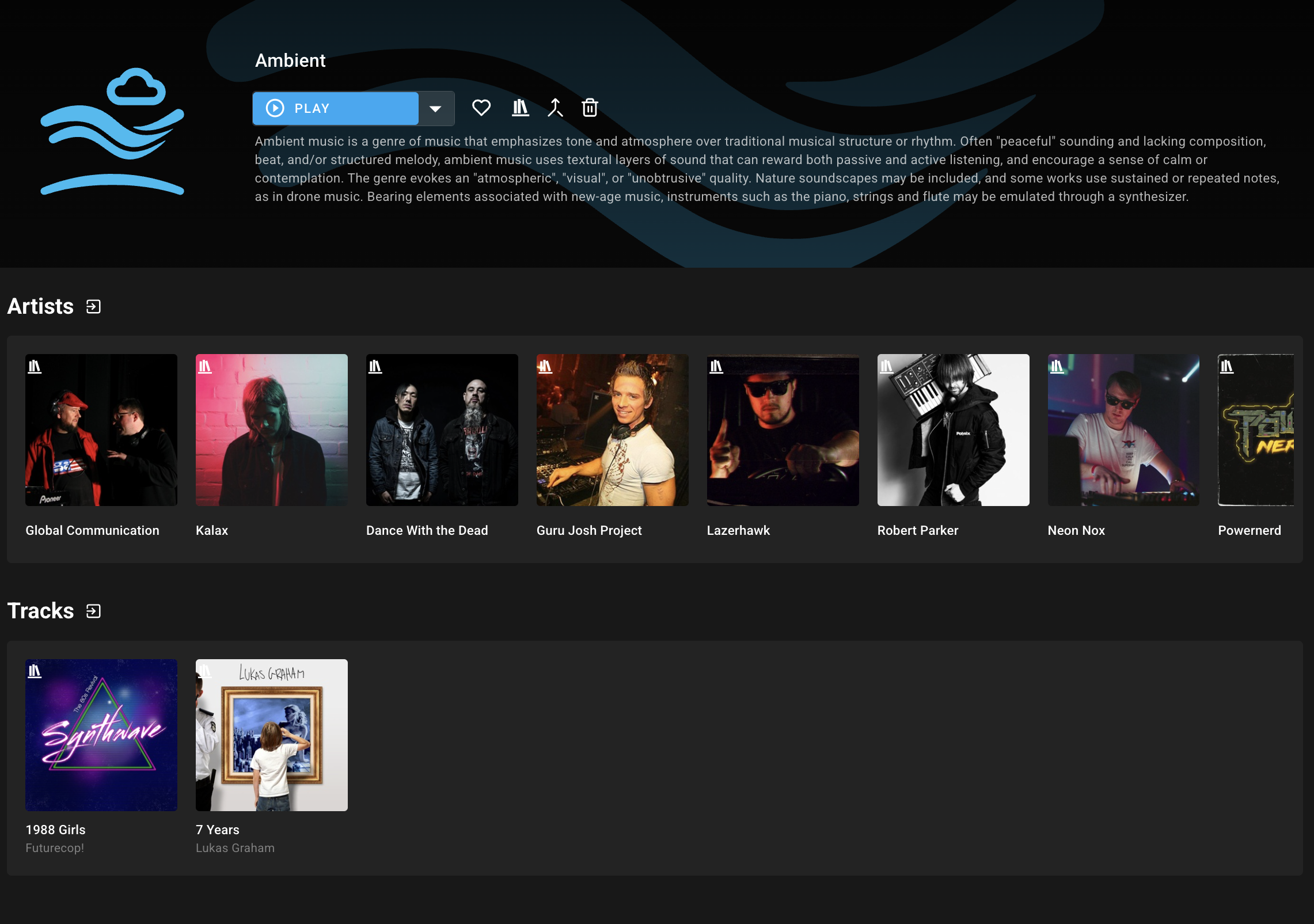
Section titled “Genre Detail Page”Selecting a genre from the library opens its detail page. This page provides an overview of the genre and all media associated with it.
Genre Header
Section titled “Genre Header”The header displays:
- Genre name: Translated to the user’s language for built-in genres
- Description: Sourced from built-in genre descriptions or custom metadata. Clicking the description expands it to full length
- Favorite toggle: Mark or unmark the genre as a favorite
- Provider icon: Indicates where the genre is stored
Admin Actions
Section titled “Admin Actions”Administrators see additional action buttons in the header:
- Merge: Merge this genre into another genre (see Merging Genres)
- Delete: Delete this genre from the library (see Deleting Genres)
These actions are also available in the three-dot overflow menu.
Overview Rows
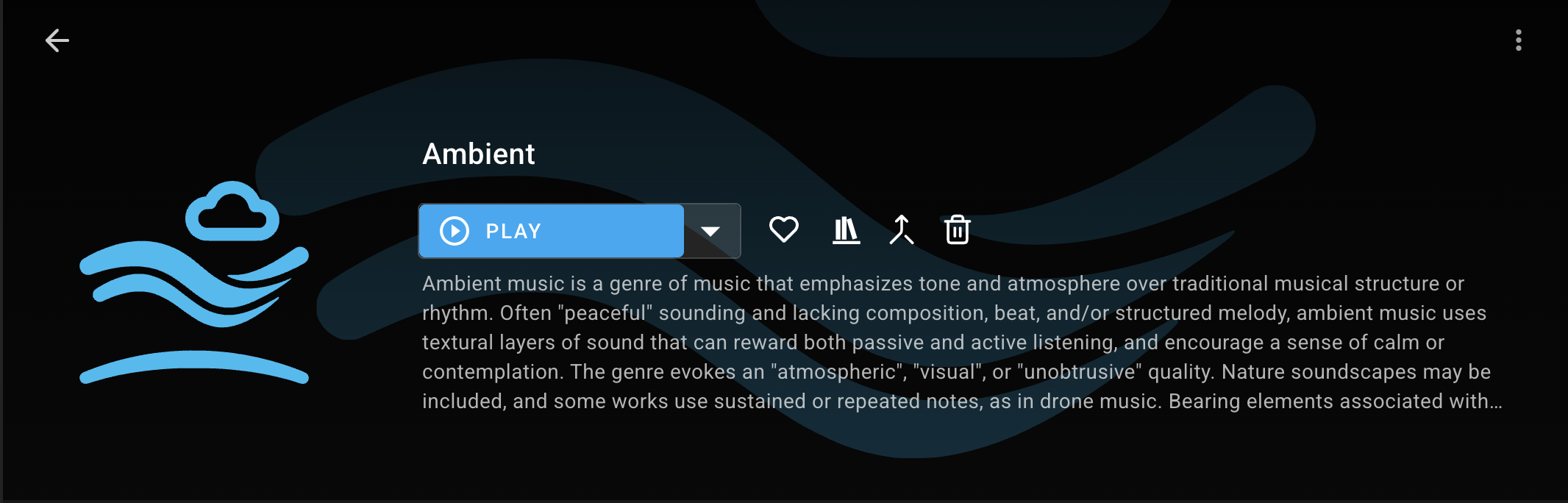
Section titled “Overview Rows”Below the header, the detail page displays media items associated with the genre, grouped by type:
- Artists
- Albums
- Tracks
- Playlists
- Radio Stations
Each row can be expanded to browse the linked items.
Genre Aliases
Section titled “Genre Aliases”Administrators can manage genre aliases from the detail page. Aliases allow multiple names to resolve to the same genre, which is useful when different providers use different names for the same style of music.
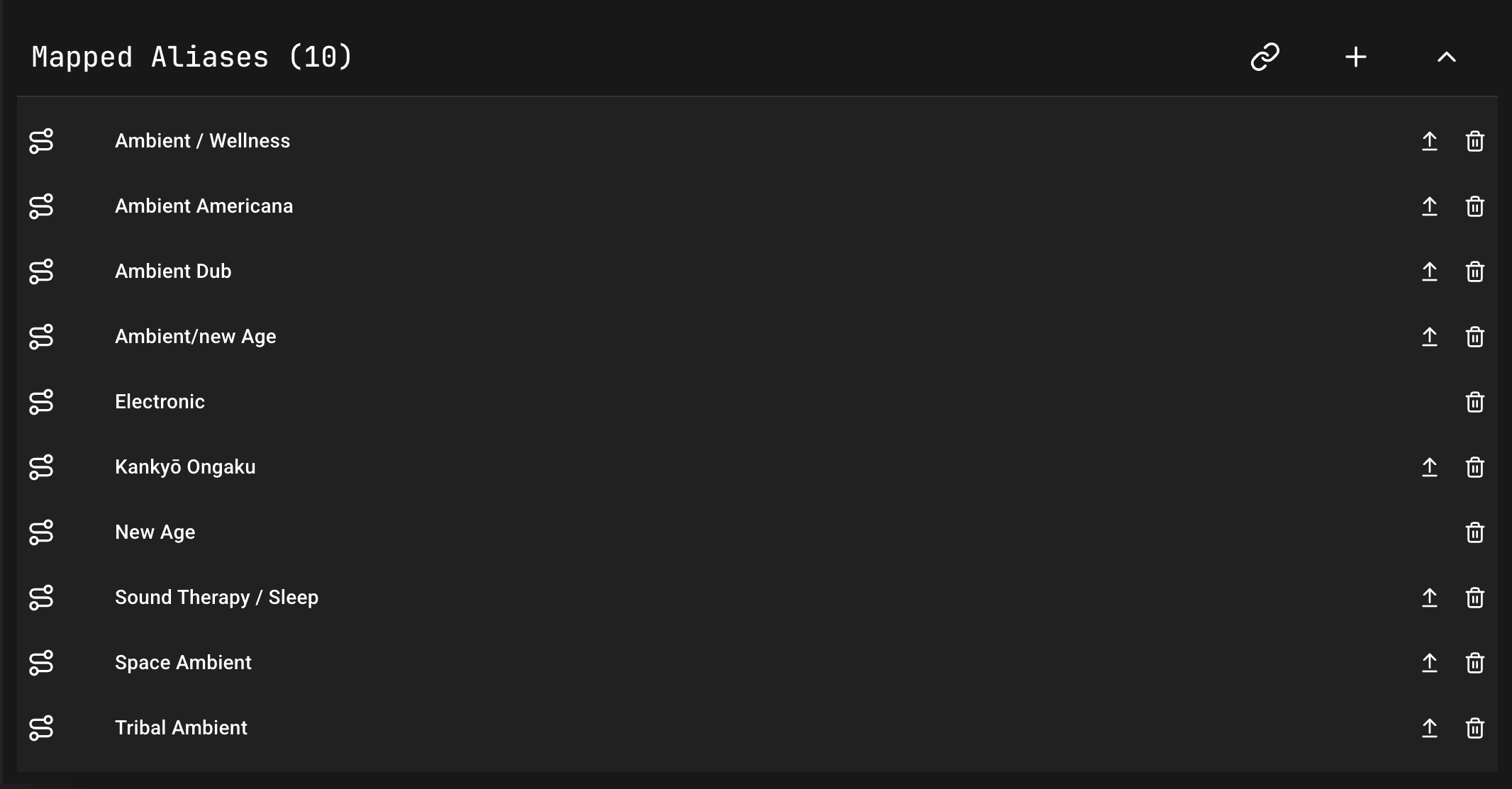
The alias manager supports:
- Add Alias: Create a new alias for this genre
- Link Alias: Search for and link an existing alias from another genre
- Promote Alias: Convert an alias into its own standalone genre
- Remove Alias: Unlink an alias from this genre
A promoted alias always stays in the same category (Music, Podcasts, or Audiobooks) as the genre it came from.
Genre Actions
Section titled “Genre Actions”Merging Genres
Section titled “Merging Genres”Merging allows you to combine two or more genres into one. All aliases and media mappings from the source genres are transferred to the target genre, and the source genres are deleted.
To merge genres:
- Select one or more genres in the library (or open a genre’s detail page)
- Choose Merge into existing genre from the context menu or the header action
- In the dialog, search for and select the target genre
- Confirm the merge
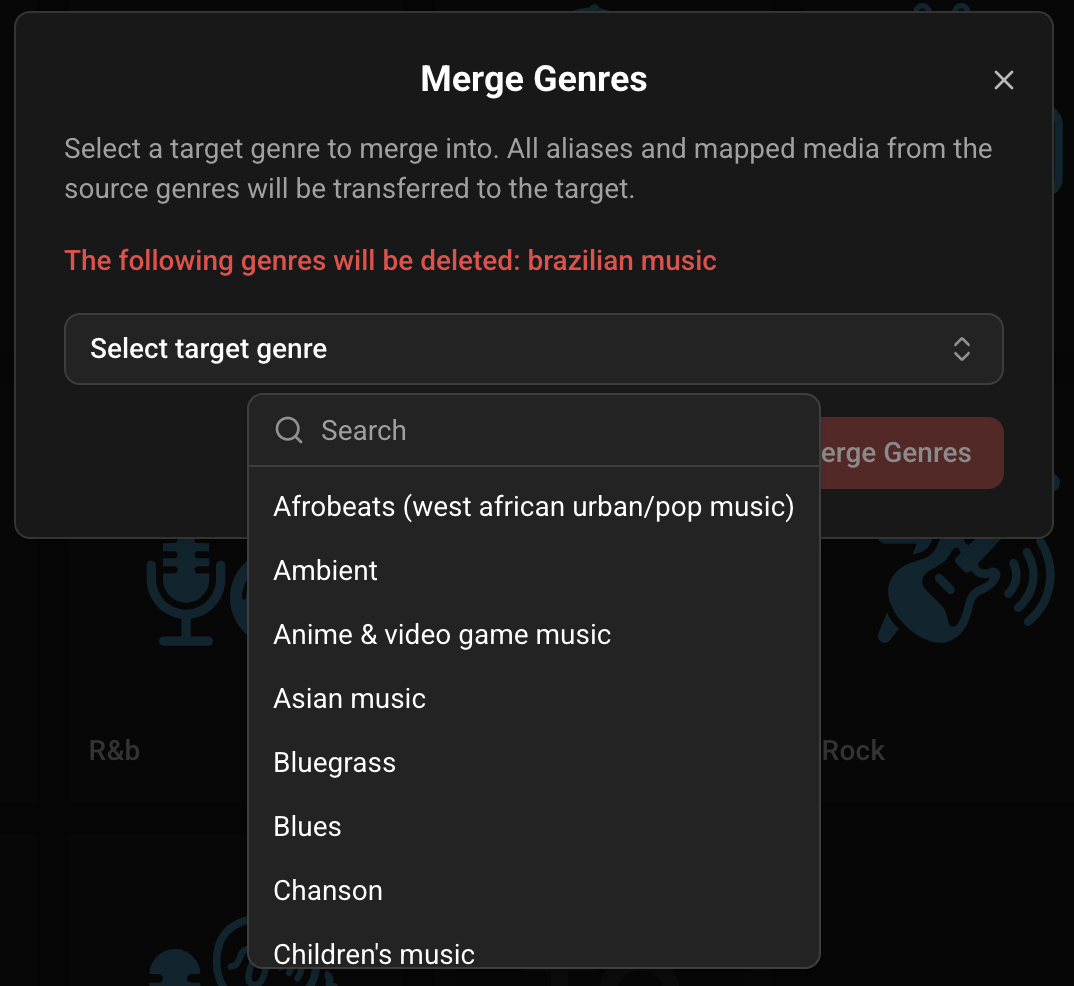
NOTE: Merging is a destructive action. The source genres will be permanently deleted. All their aliases and media mappings are transferred to the target.
NOTE: Genres can only be merged within the same category. The target picker only shows genres from the same category as the one(s) you’re merging, and the Merge into existing genre option won’t appear at all if your selection spans more than one category.
Deleting Genres
Section titled “Deleting Genres”Administrators can delete genres from the library. Deleting a genre removes it and all its associated aliases and media mappings.
To delete genres:
- Select one or more genres in the library, or open a genre’s detail page
- Choose Delete genre from the context menu or the header action
- Confirm the deletion in the two-step confirmation dialog
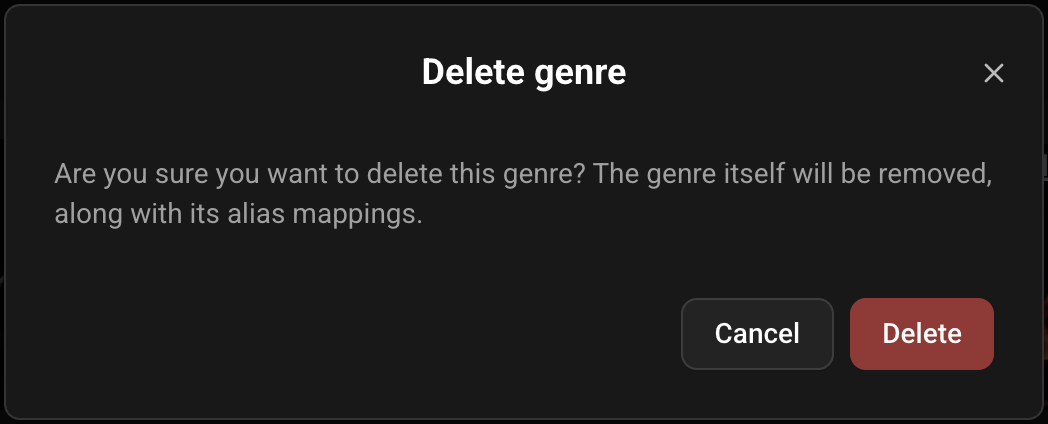
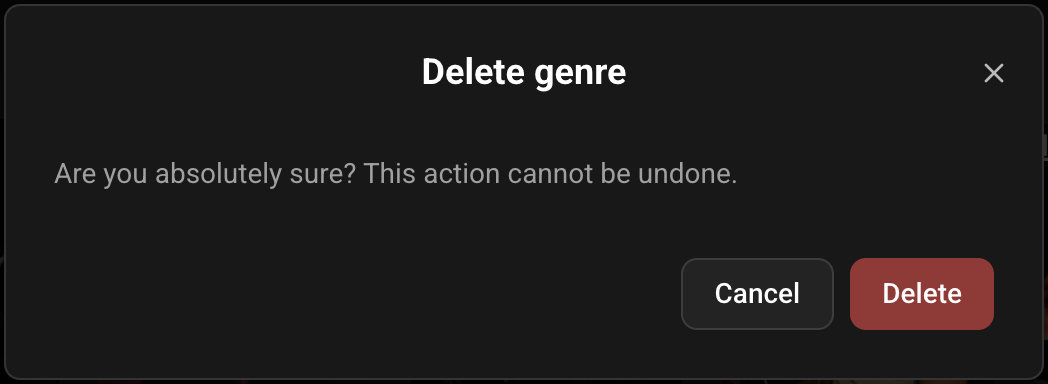
CAUTION: Deleting a genre is permanent and cannot be undone.
Linking Media Items to a Genre
Section titled “Linking Media Items to a Genre”You can manually link library media items (artists, albums, tracks, playlists, radio stations) to a genre. This is useful when automatic genre detection has not assigned the correct genres, or when you want to create custom genre groupings.
To link items to a genre:
- Right-click a media item (or select multiple items and open the actions menu)
- Choose Link to genre
- In the dialog, search for and select the target genre
- Confirm the link
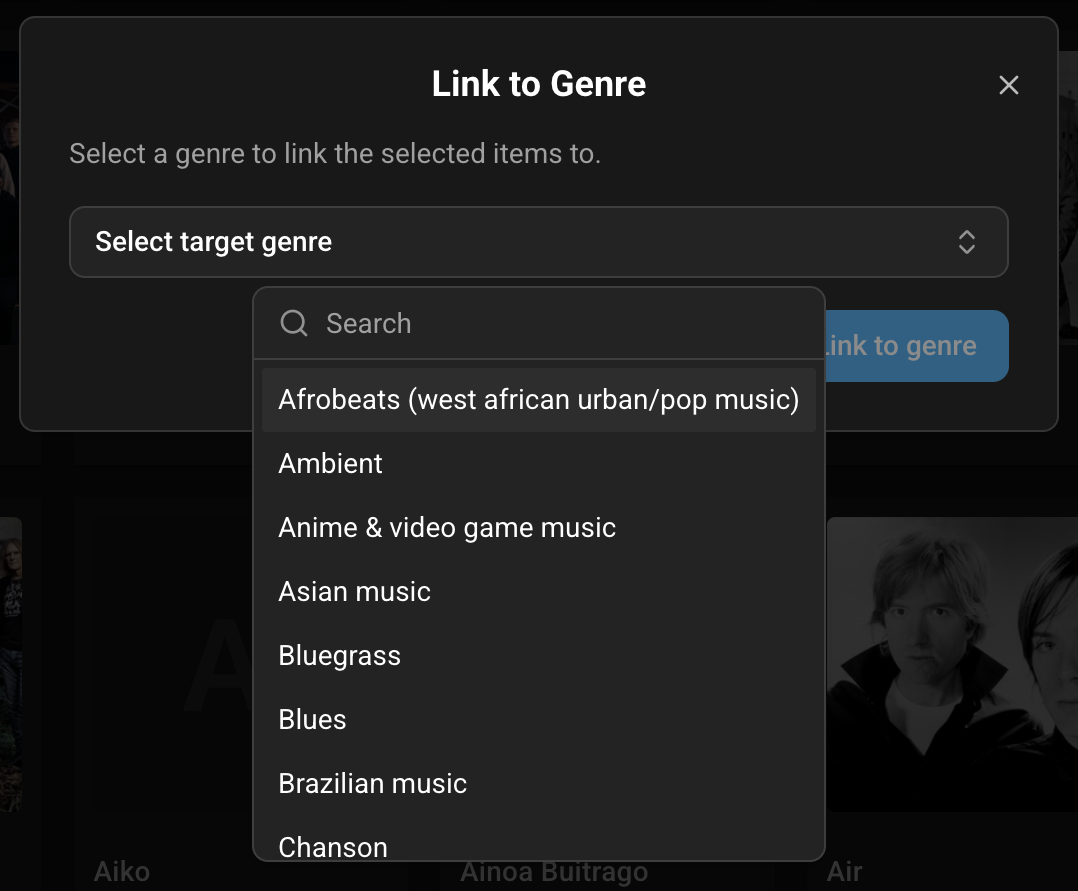
NOTE: The link to genre option is only available for items that are in your library. Items from external providers that have not been added to the library cannot be linked.
Managing Genres
Section titled “Managing Genres”Administrators can manage genres in bulk from Settings → System → Genre Management.
Genre Library Administration
Section titled “Genre Library Administration”This table lists every genre in your library across all three categories, and supports:
- Search: Find a genre by name
- Media type filter: Narrow the table to Music, Podcasts, or Audiobooks, or view All categories at once. When viewing All, a media-type icon next to each genre shows which category it belongs to
- Show all genres: Toggle between all genres, non-empty genres only, or default genres only
- View: Choose which columns are shown
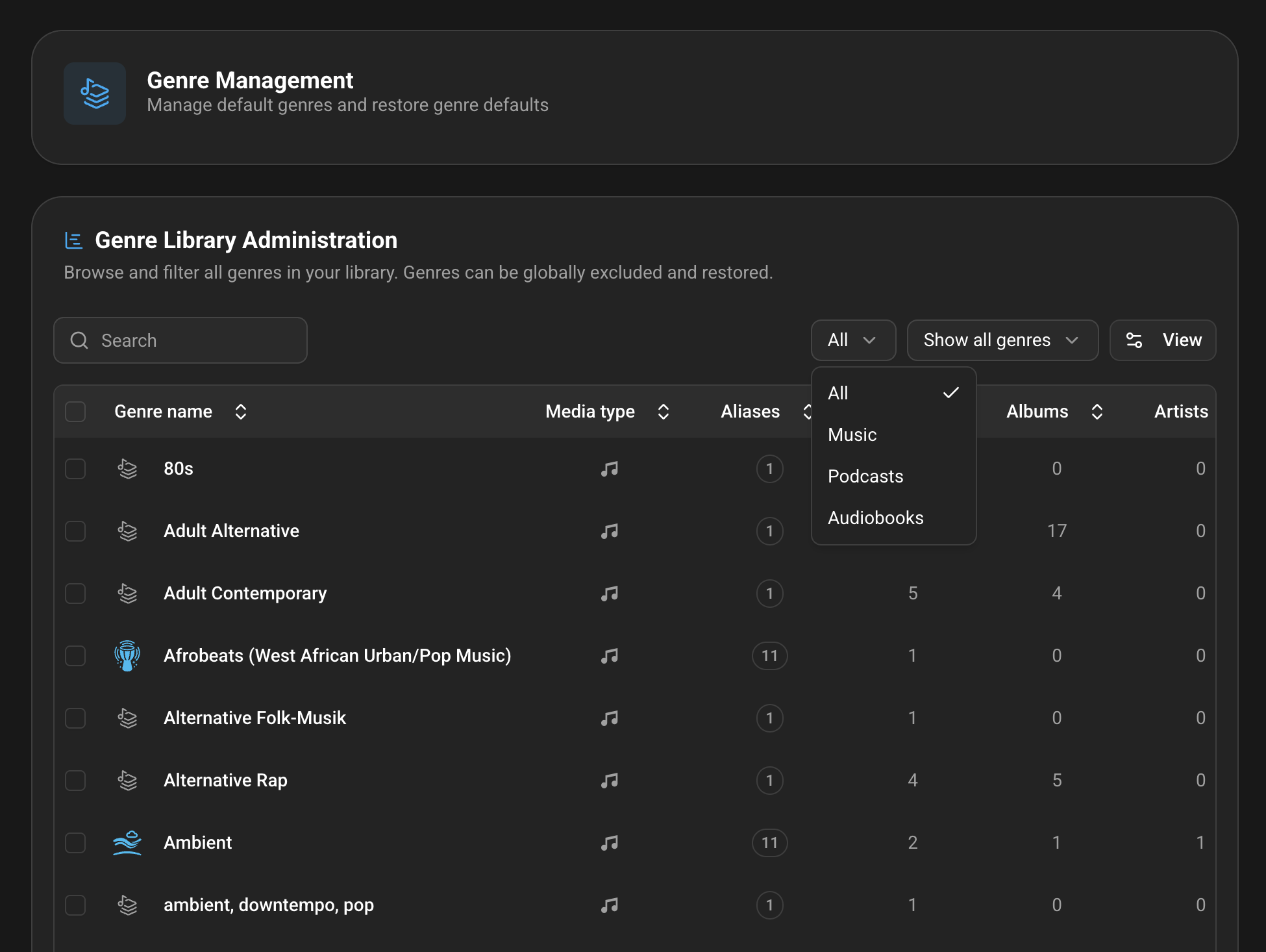
Selecting one or more genres in this table gives you the same actions available from the genre library: merge, delete, and restore excluded genres.
Excluded (globally hidden) genres are listed below the active ones, greyed out, with an option to restore them.
Restoring Default Genres
Section titled “Restoring Default Genres”Two options are available if you want to bring back genres that were removed or excluded:
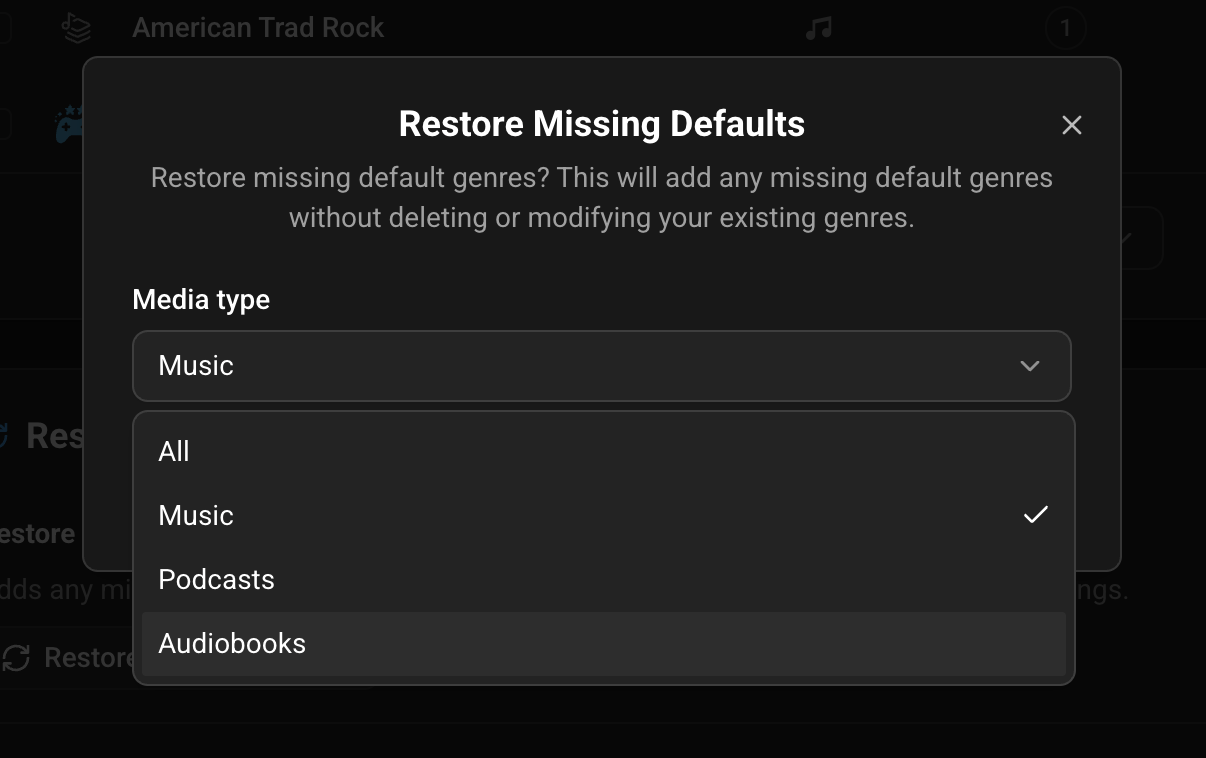
- Restore Missing Defaults: Adds back any missing default genre, without touching your existing genres or custom mappings. Choose to restore All categories at once, or just Music, Podcasts, or Audiobooks.
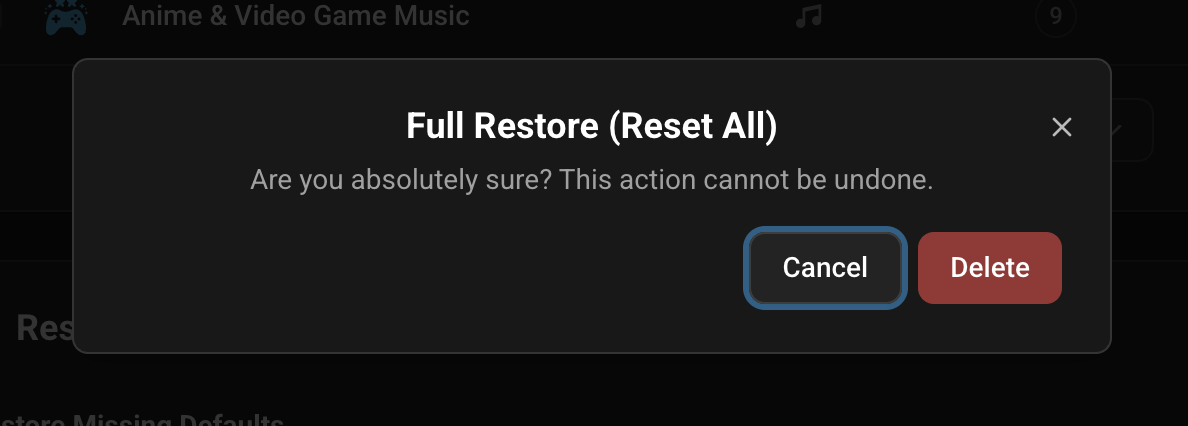
- Full Restore (Reset All): Deletes every genre and alias, recreates only the defaults, and remaps all existing media items to the new genres. All custom genres, alias mappings, and media associations are lost. This always restores every category. There’s no option to limit it to just one.
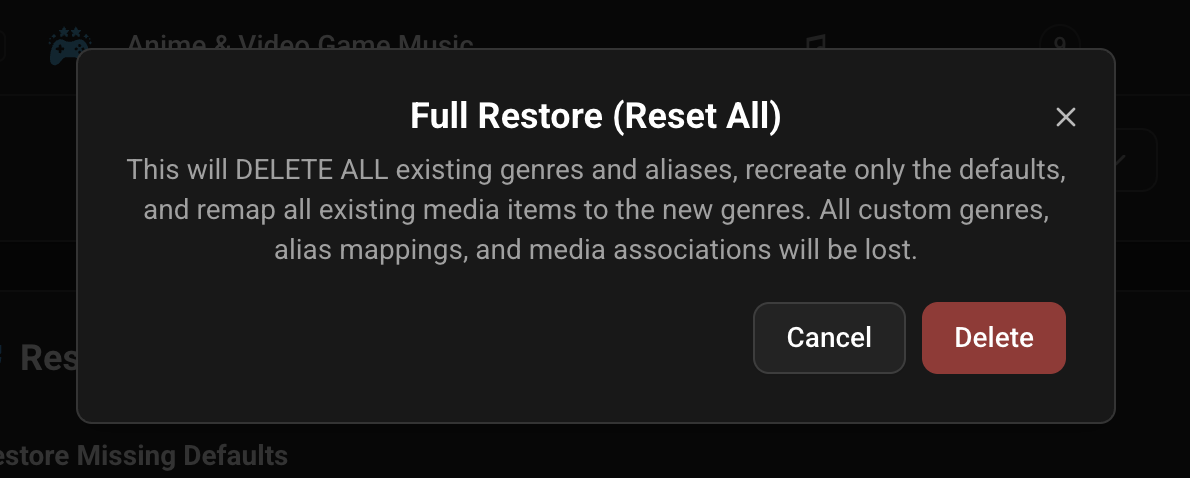
CAUTION: Full Restore is permanent and cannot be undone. You’ll be asked to confirm twice before it runs.
Genres on Media Items
Section titled “Genres on Media Items”When viewing an artist, album, or track detail page, the genres associated with that item are displayed as clickable chips below the description. Clicking a genre chip navigates to that genre’s detail page.

This website uses privacy-first analytics to help us improve the site. You can view all data in our public dashboard.